Step-by-Step Tutorial
How to Create a Talking Photo with AI: A Free Guide

Bringing Still Images to Life with AI
How to Make a Photo Talk in 5 Steps
Step 1
Step 1: Upload Your Photo
Begin by selecting the image you want to animate. Navigate to the AI Talking Photo tool and upload your chosen picture. For the most effective animation, use a clear, front-facing portrait where the subject's face is well-lit and not obscured by hands, shadows, or other objects. A higher-resolution image will produce a cleaner final video. This is the foundational element of your creation, so choose wisely.Important: You must have the rights to use the photo you upload. Only use pictures of yourself or photos that you have been given explicit permission to animate by the subject.Step 2
Step 2: Provide Your Audio File
Next, upload the audio track you want the photo to 'speak'. This can be a recording of your own voice, a voiceover, or any other sound clip. For optimal lip-syncing, use a clean audio file with a clear, isolated voice and minimal background noise. The AI will synchronize the facial movements to this track, so the clearer the audio, the more precise and believable the animation will be.Step 3
Step 3: Choose a Background or Preset
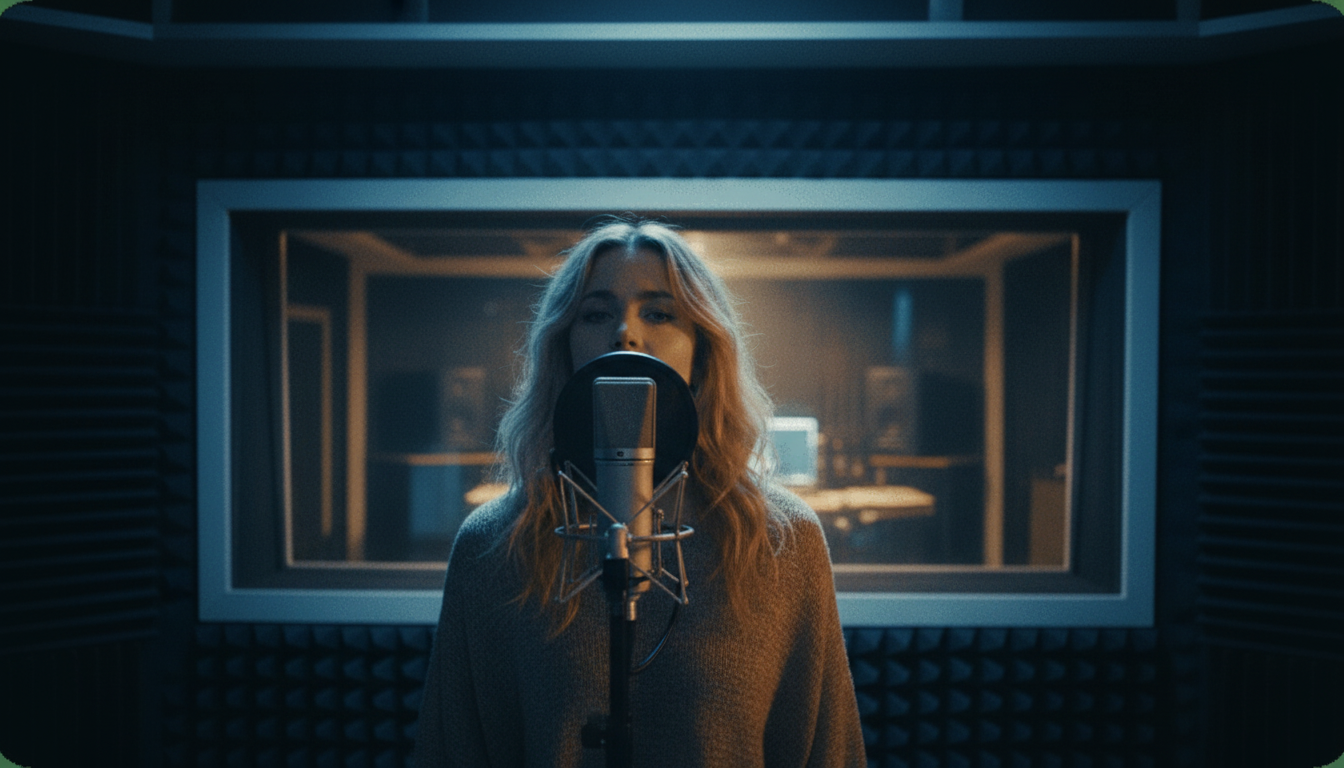
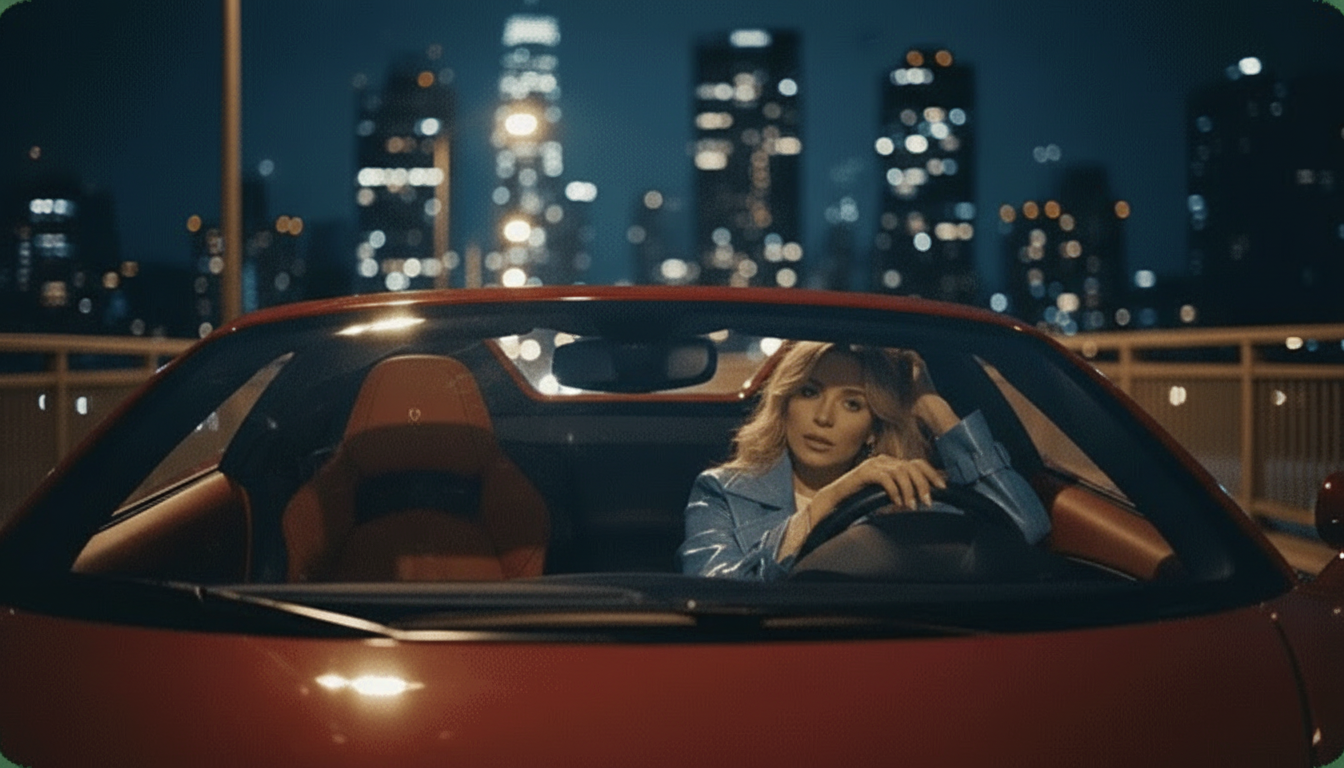
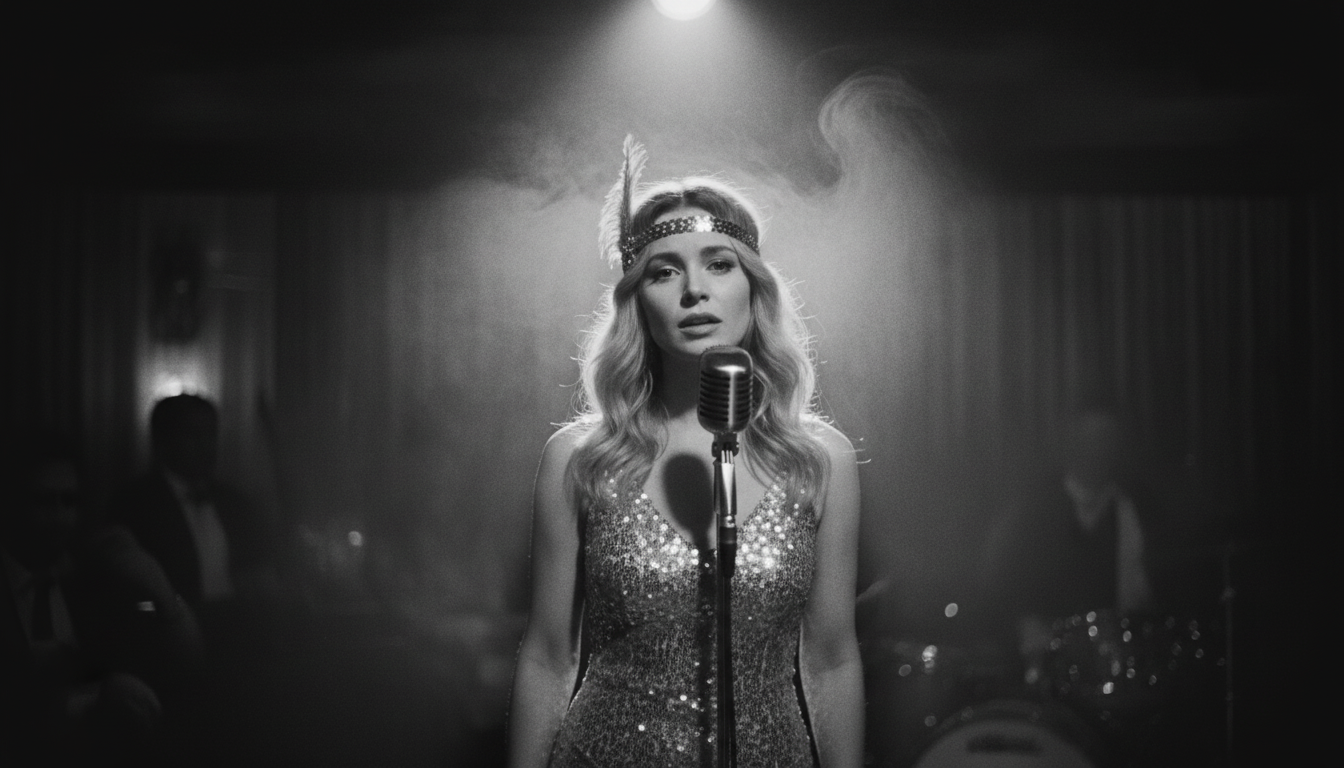
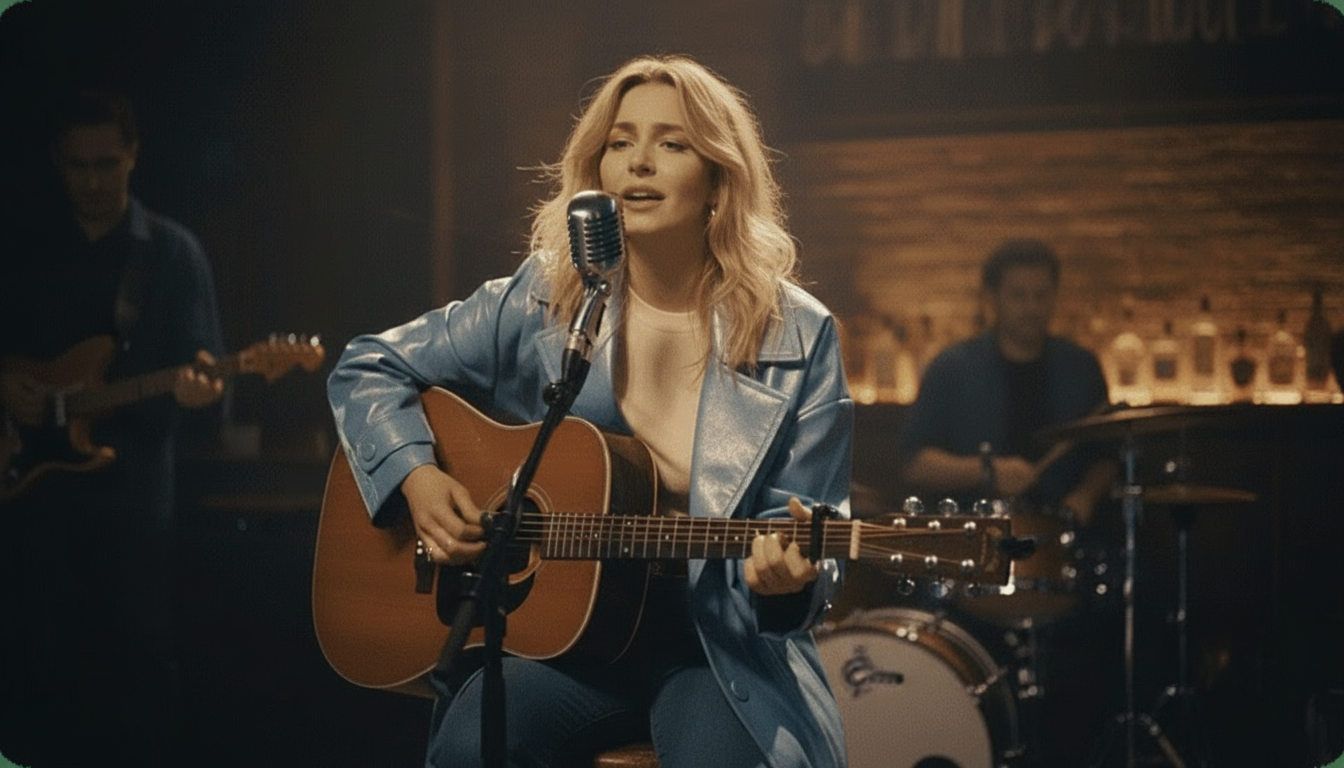
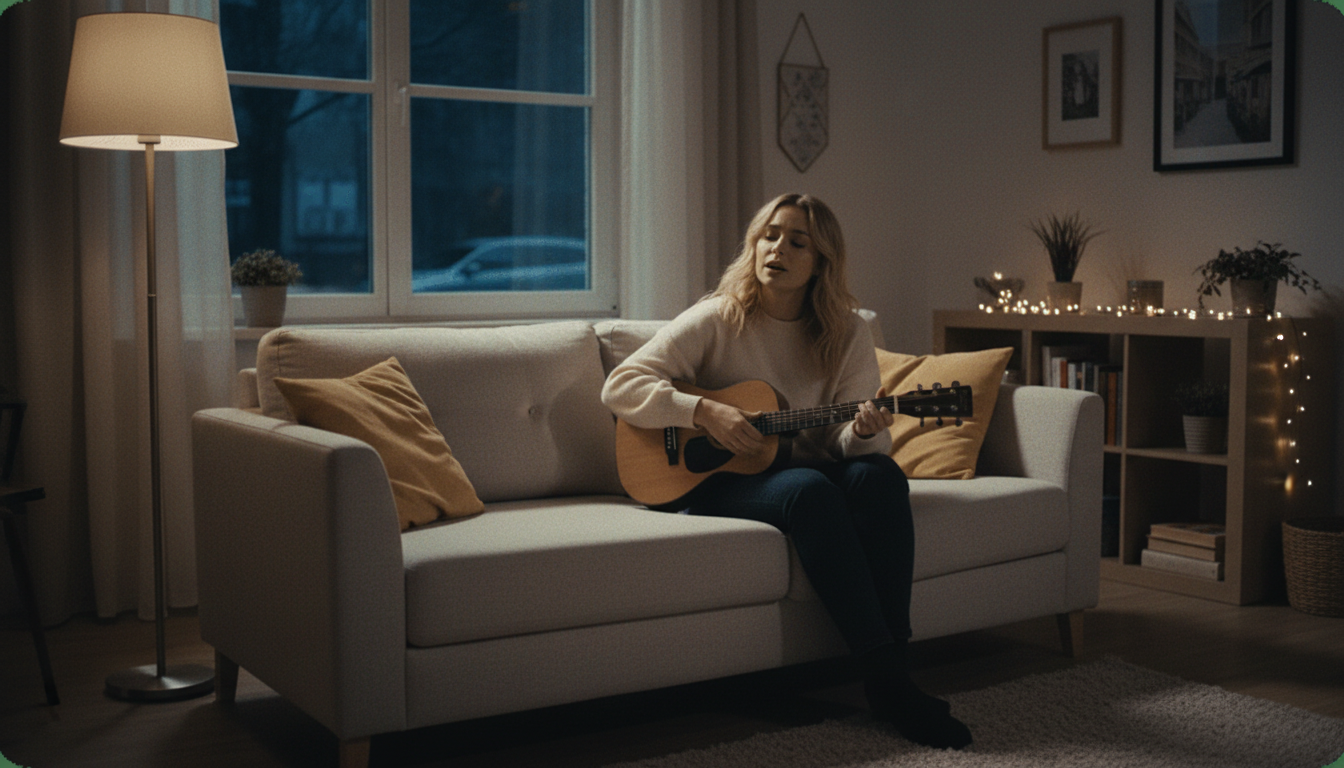
You can enhance your talking photo by placing it in a specific environment. The tool offers several 'Instant Stage Presets' like Studio, Jazz Club, or Home to quickly set a mood. Alternatively, you can use the Custom Scene Editing feature to upload your own background image. This step allows you to add context and personality to your video, turning a simple animation into a complete scene.Step 4
Step 4: Generate and Preview Your Video
With your photo and audio uploaded, click the generate button. The AI will now process your files, which may take a few moments. It maps the phonemes from your audio file to the facial landmarks in your photo to create the animation. Once complete, a preview of your talking photo will appear. Watch it to ensure the lip-syncing and movements look natural and meet your expectations.Step 5
Step 5: Download Your Free Talking Photo
If you're happy with the result, simply click the download button. With karaokevideo.ai, the final video is completely free and does not contain any watermarks. You can immediately share your creation on social media platforms like TikTok, Instagram Reels, or use it in any personal or creative project. There are no limits on how many talking photos you can create.
Getting the Best Animation Results
Select a High-Quality Portrait
The AI works best with a clear, well-lit photo where the subject is looking directly at the camera. Avoid images with tilted heads, sunglasses, or hands covering the mouth, as these can interfere with the facial mapping process and result in a less accurate animation.
Use Clean and Clear Audio
The quality of your audio directly impacts the quality of the lip-syncing. Record your voice in a quiet room using a decent microphone to avoid background noise, echoes, or distortion. A clean, crisp voice track will give the AI the best information to work with for precise mouth movements.
Match the Audio to the Image's Tone
For a more believable result, try to match the tone of the audio with the expression in the photograph. A serious-looking portrait paired with a dramatic monologue will feel more coherent than pairing it with a stand-up comedy routine, unless you are intentionally aiming for a comedic, jarring effect.
Experiment with Different Backgrounds
Don't underestimate the power of context. Placing your talking photo in a relevant setting using a custom background can dramatically elevate the final video. A historical figure speaking in a library, for example, is more immersive than one against a plain white background.
Creative Ways to Use Your Talking Photo
Talking Photo Tools: Free vs. Paid
| Feature | karaokevideo.ai | HeyGen | musci.io |
|---|---|---|---|
| Pricing Model | 100% Free | Freemium with paid plans | Freemium with paid plans |
| Watermarks | None | Yes on free plan | Yes on free plan |
| Usage Limits | No limits on creations | Limited credits/video length on free plan | Limited video length and quality on free plan |
| Primary Use | Easy, single-purpose photo animation | Broader AI video platform with avatars | AI music video and singing photo tool |
Common Questions About Talking Photos
Is it really free to make a talking photo online?
What kind of photos work best for AI talking animations?
Can I use any audio file to make a picture talk?
How long does it take to turn a picture into a talking video?
Do I need to download or install any software?
What are the rules about which photos I can use?
Can I also use this tool to make a photo sing a song?
Ready to Animate Your Photos?
Bring your pictures to life today. Create your first talking photo for free with our AI tool. No sign-up, no watermarks, just instant results.
Try the Talking Photo MakerRelated guides
How-To Guide
How to Make Any Photo Sing with AI
Learn the steps to animate a still photo to sing along to any song, creating a viral-worthy music video for free.
Best Tools
The Best AI Talking Photo Generators
A roundup of the top tools available for creating talking photos, comparing features, pricing, and ease of use.
How-To Guide
How to Lip-Sync a Photo to Audio
A detailed walkthrough on how to perfectly synchronize a photo's mouth movements to any audio track, from speech to song lyrics.
Fun Project
How to Create an AI Singing Animal Video
Bring your pet photos to life by making them sing your favorite tunes. A fun guide to creating hilarious and heartwarming videos.
Sources
- karaokevideo.ai — Free AI Talking Photo - The tool featured in this how-to guide.