How-To Guide
Getting a Photo to Actually Lip Sync Convincingly

What is AI Lip Sync and How Does It Work?
What You'll Need to Get Started
- A Clear Digital Photo. Choose a high-resolution photo where the subject's face is well-lit and facing forward. Avoid images with shadows covering the mouth or where the face is at an extreme angle, as this can make it harder for the AI to animate accurately. Crucially, you must own the rights to the photo or have explicit permission to use it.
- An Audio File. This can be any MP3, WAV, or other common audio format containing a song, a voice memo, or any sound you want the photo to sync with. Clear, crisp audio without excessive background noise will produce the most precise lip movements in your final video.
How to Lip Sync a Photo in 5 Steps
Step 1
Step 1: Upload Your Photo
Begin by navigating to the karaokevideo.ai lip sync tool. The first step is to upload your chosen image. Look for an upload button and select the file from your device. For the AI to generate the best animation, use a photo where the mouth is closed or in a neutral position. This provides a clean slate for the AI to work from.Important: Only use photos of yourself or photos you have explicit consent to use. Using images of others without permission raises serious privacy and ethical concerns.Step 2
Step 2: Add Your Audio Track
Next, upload your audio file. This could be a full song, a short vocal clip, or a line of dialogue. The AI will analyze the audio's waveform and phonetic data to prepare for the animation. The length of the audio will determine the length of your final video, so trim it beforehand if you only want to use a specific section.Step 3
Step 3: Choose Your Animation Mode
Our tool offers several modes to fit your project. For a standard lip sync, 'Solo' or 'AI Talking Photo' are the ideal choices. If your image features two people, you can try the 'Duet' mode. There is even a 'Pet Karaoke' mode specifically trained to animate the mouths of cats and dogs, which is perfect for creating funny videos with your furry friends.Step 4
Step 4: Select a Scene or Background
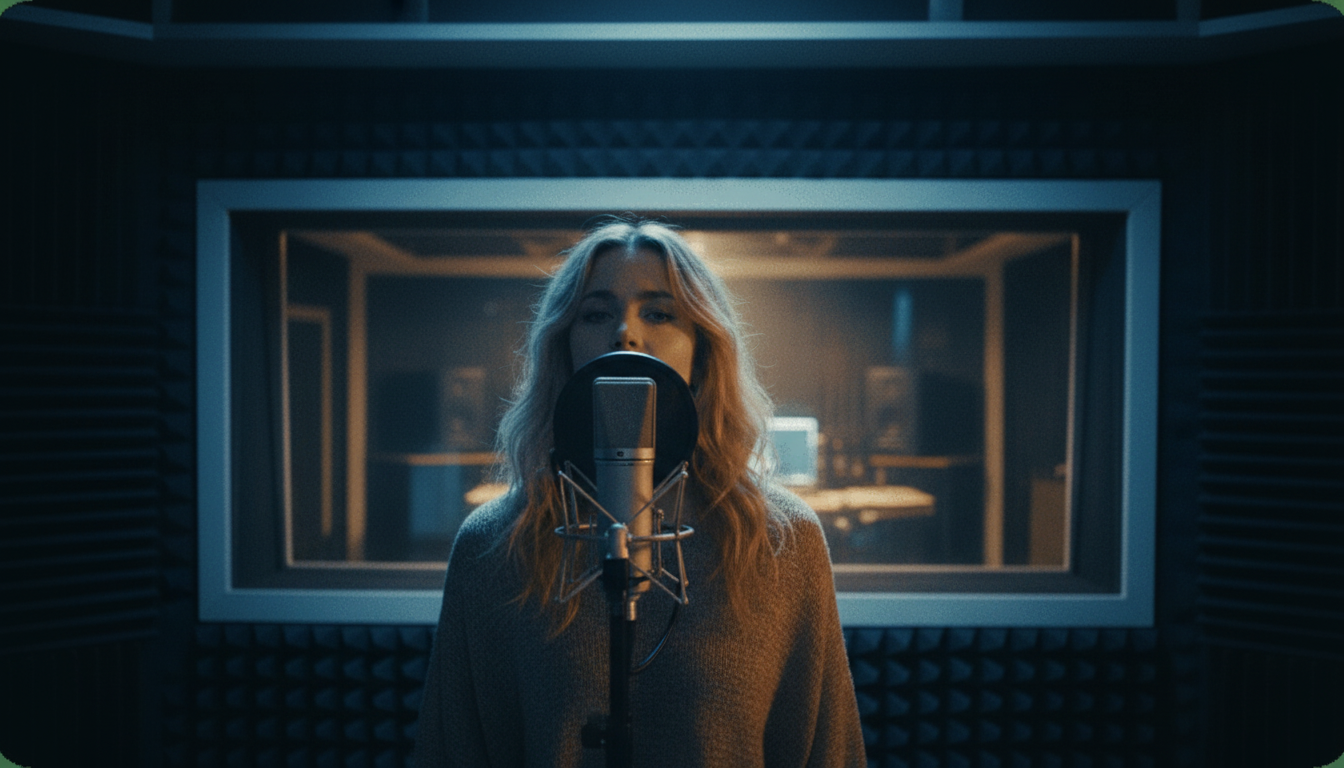
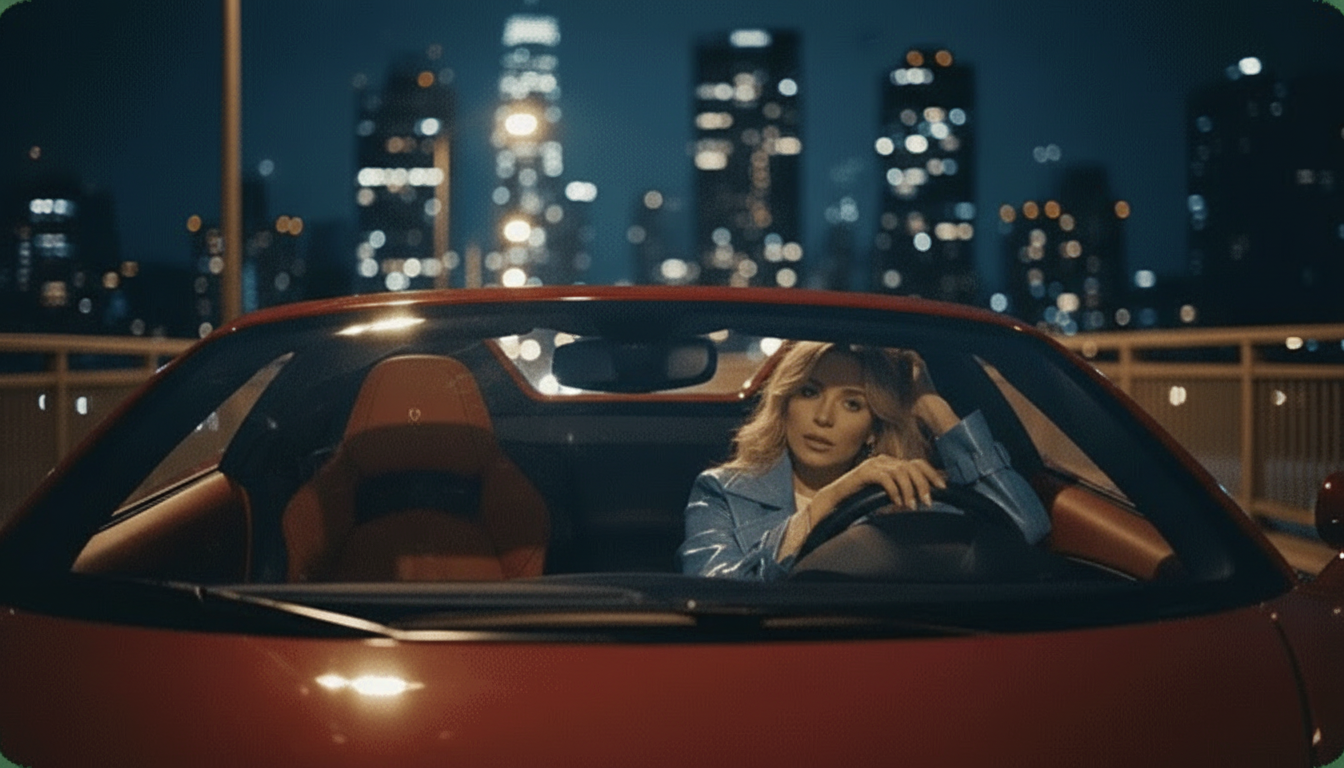
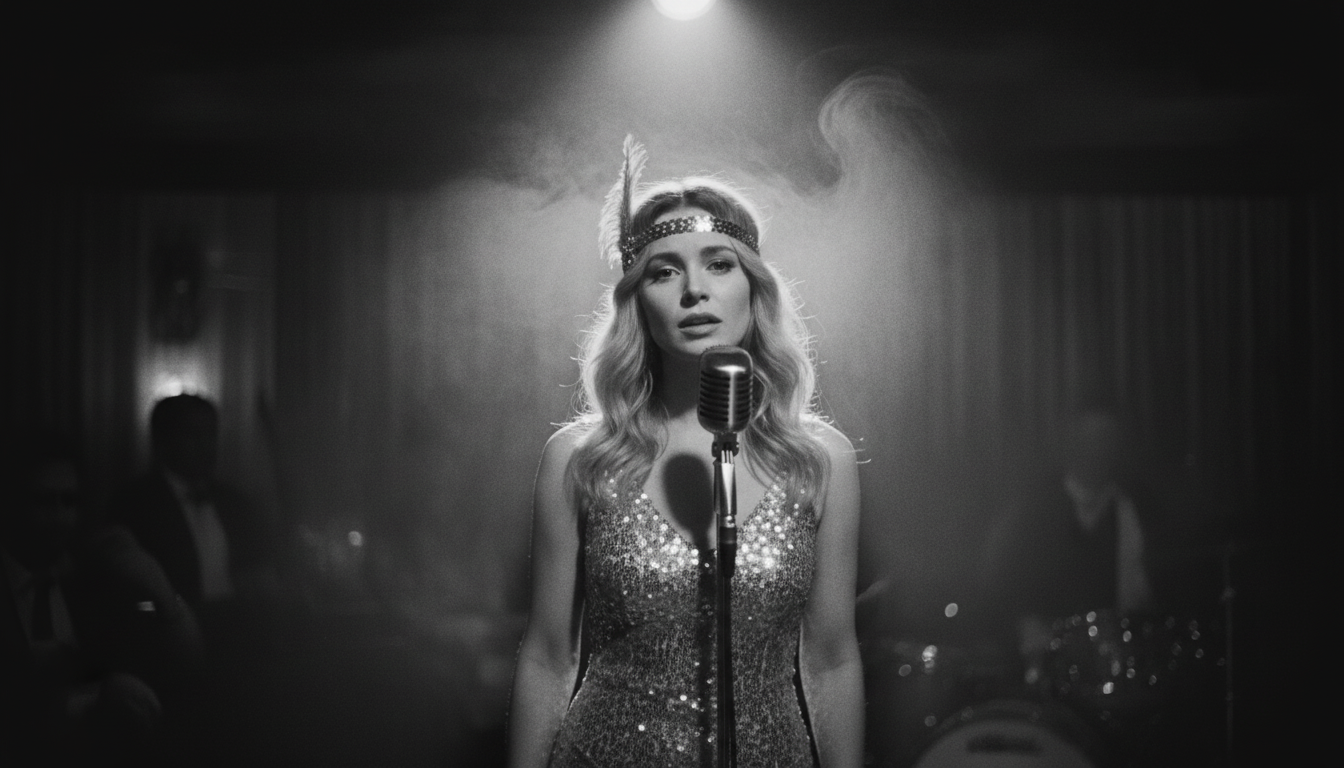
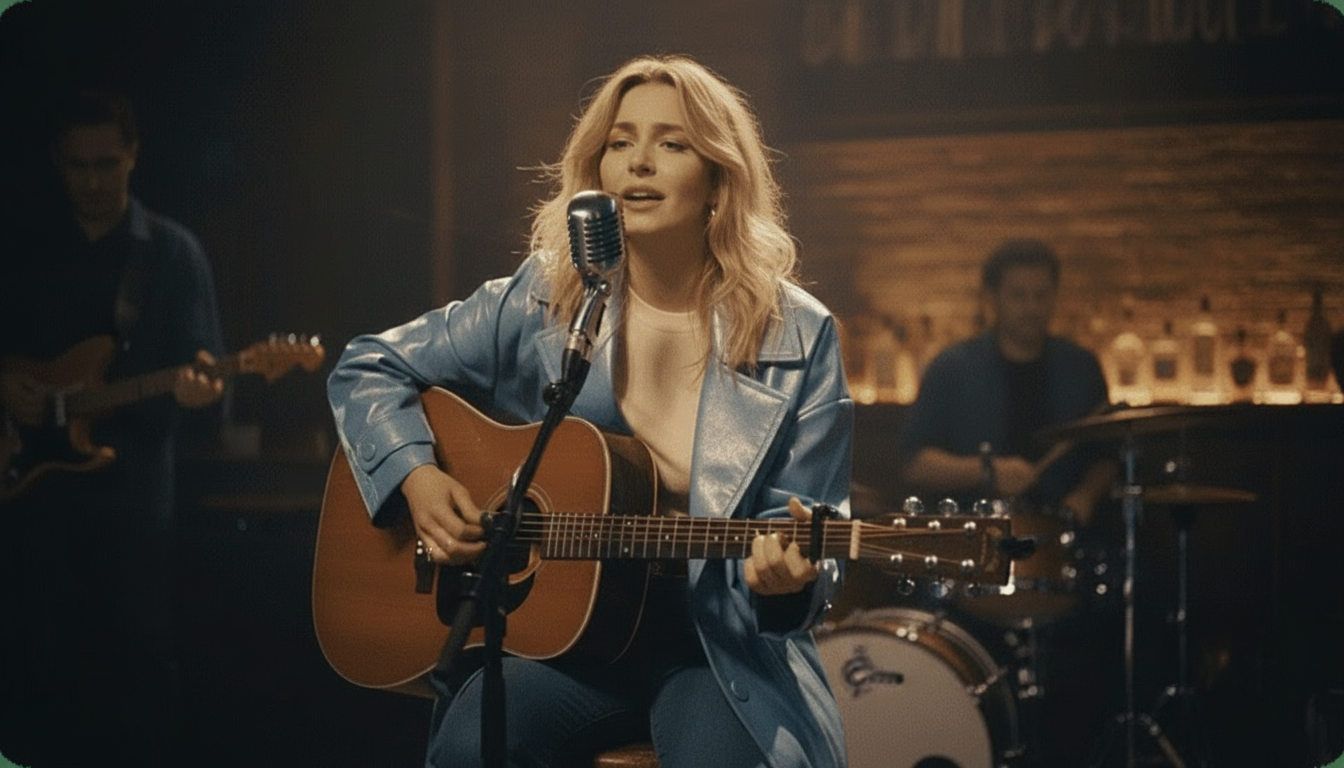
Enhance your video by choosing a virtual background or 'stage'. You can select from Instant Stage Presets like 'Studio' for a clean look, 'Jazz Club' for a moody atmosphere, or 'Supercar' for a high-energy feel. This step adds a layer of production value and context to your animation, making it more than just a moving photograph.Step 5
Step 5: Generate, Preview, and Download
With your assets uploaded and settings configured, click the generate button. The AI will take a few moments to process the files and create your video. Once it's ready, you can preview the result. If you're happy with the synchronization, you can download the video file directly to your device, completely free and without any watermarks.
Getting the Most Out of Your Lip Sync Video
Start with a High-Quality Photo
The resolution of your source image matters. A blurry or pixelated photo will result in a low-quality video. Use a sharp, clear image as your starting point to ensure the final animation looks crisp and professional, especially on larger screens.
Use Clean Audio
The AI's ability to sync the mouth movements depends on how clearly it can 'hear' the vocals or speech. Audio with loud background music, reverb, or noise can confuse the model. Using an acapella track or a clean voice recording will always yield more accurate results.
Match the Emotion
While the AI handles the mouth, the rest of the face remains static. For a more believable result, choose a photo whose expression matches the tone of the audio. A smiling photo works best for an upbeat song, while a neutral expression is better for a serious speech.
Experiment with Different Modes
Don't just stick to the standard settings. Try running the same photo and audio through the 'Solo' mode and the 'AI Singing Avatar' mode to see which one produces a more compelling effect for your specific project. Small variations can lead to a much better final product.
Choosing a Free Lip Sync Photo Tool
| Feature | karaokevideo.ai | HeyGen | musci.io |
|---|---|---|---|
| Cost Model | 100% free, unlimited use | Free plan with limited credits | Credits-based system with paid tiers |
| Watermarks | None | Watermarked on free plan | Watermarked on free creations |
| Video Length Limit | No hard limit stated | Short clips on free plan (e.g., 1 minute) | Capped length based on plan |
| Ease of Use | Web-based, no installation | Web-based platform | Web-based platform |
Common Questions About Lip Syncing Photos
How can I lip sync a photo to any song for free?
What's the best way to lip sync a photo with AI?
Can I make a photo lip sync at home without complex software?
Does the photo have to be of a person?
How does AI lip sync technology actually work?
What kind of audio files work best for lip syncing?
Are there any limits on how many lip sync videos I can create?
Can I use a photo of a celebrity or a cartoon character?
Ready to Animate Your Photos?
Bring your still images to life in minutes. Create everything from viral memes to personalized video messages with our powerful and easy-to-use AI. No downloads, no sign-ups, and no watermarks.
Create Your First Lip Sync Video for FreeRelated guides
Related Guide
How to Make Any Photo Sing With AI
A step-by-step guide focused specifically on syncing photos to music, from pop songs to original compositions.
Best Tools
The Best AI Lip Sync Tools in 2026
A roundup and comparison of the top AI tools for creating lip sync videos from photos, comparing features, pricing, and quality.
Related Guide
How to Make a Talking Photo for Free
Learn how to animate a still photo to make it talk, perfect for creating video messages, educational content, or social media posts.
Ideas & Inspiration
10 Ways to Turn One Song into Social Media Content
Discover creative ways to repurpose a single song into multiple pieces of content for TikTok, Reels, and Shorts, including using lip sync photos.
Sources
- karaokevideo.ai — Free Lip Sync Photo Tool - The primary tool featured in this how-to guide.